You can save and organize your favorite meals using the Recipe App in Shift Browser. This Shift-built app can be added to your setup and lets you build a personal library of dishes for quick access. Use the steps below to favorite recipes and manage your collection directly inside your Space.
How to save recipes in Shift Browser
The Recipe App offers a few ways to build your library.
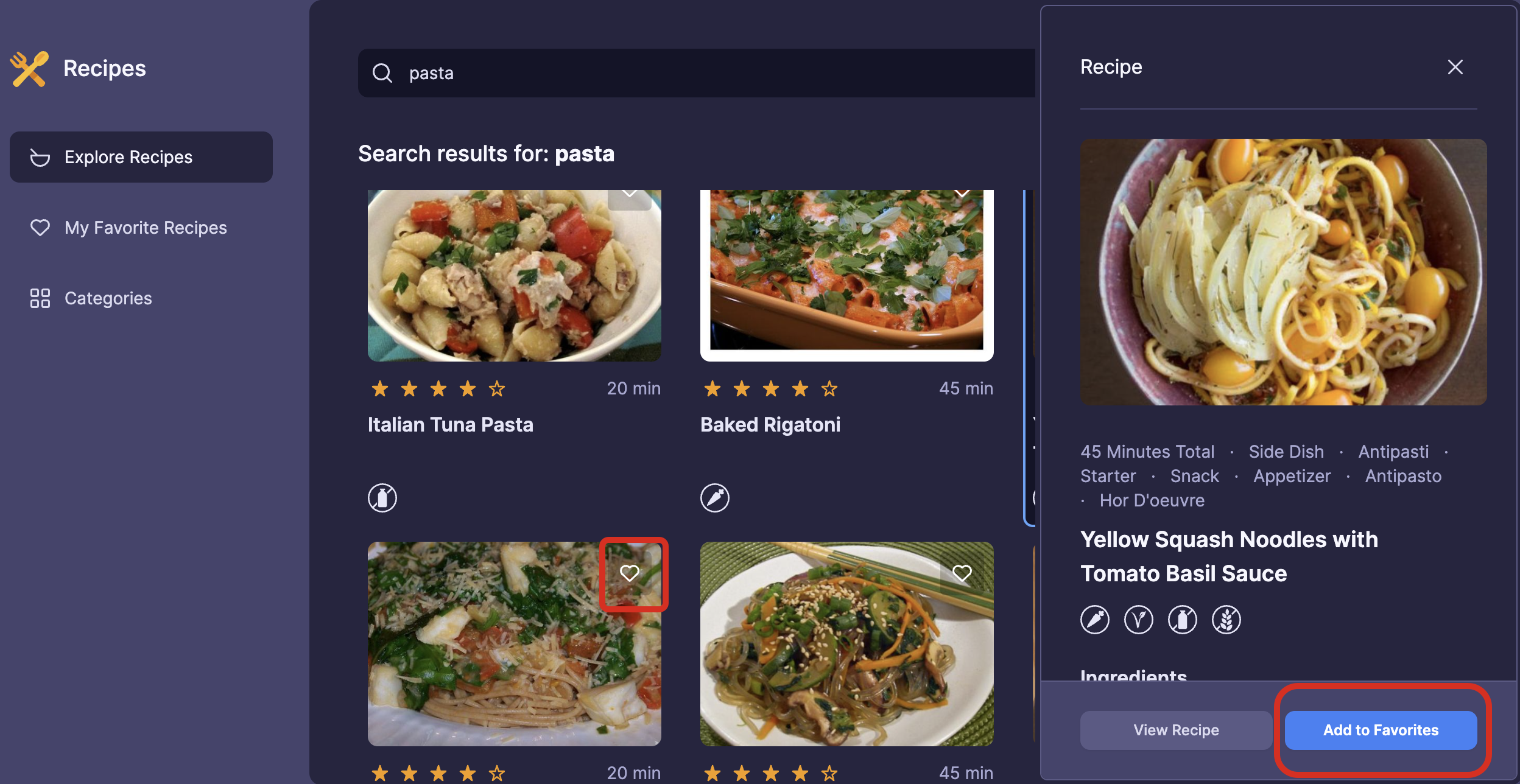
Quick Save: Click the heart icon on any recipe card while you're browsing to save it instantly.
From Quick View: Click a recipe to open the side drawer, then click the Add to Favorites button.
From Full View: If you have a recipe expanded, click the Add to Favorites button located right under the main image.
Find your saved recipes
Once you've favorited some dishes, you can find them in two places within the app:
My Favorite Recipes: This section houses every dish you've liked in one list.
Categories Section: Shift automatically organizes your saved recipes by meal type (like Breakfast or Dinner) on the left side of the app.
Remove recipes from your library
If you want to clear out your collection, you can remove recipes just as easily as you added them.
Click the heart icon on a recipe card to unfavorite it.
If you're currently viewing a recipe, click Remove Recipe under the ingredients list.
Click Yes, remove on the pop-up to confirm. You can check "Don't ask me again" to skip this confirmation in the future.
Note on Syncing: Your saved recipes are stored locally on your computer. If you use Shift on multiple devices, your favorites won't sync between them. We recommend choosing a primary device for your recipe management.
By using these features, you can easily manage your favorite recipes and find them quickly in the Recipe App.
Related Articles
- Recipe App: How to search for a recipe
- Recipe App: Quick view vs. full view
- Recipe App: Why can’t I find a specific recipe when I search?
Have a question that wasn't answered above? Click to access our request form and get in touch with our Support team.